 The future of identity operations is here. Meet Persona AI →

Review who has dashboard access with Posture



Posture gives organization Admins a security view of the people on their team who use the Persona Dashboard. It shows who has access, how they use it, and which activity looks unusual. Posture covers Dashboard users only. It doesn’t cover the individuals you verify.
Protecting personal information starts with who on your team can see it. Roles drift as people change jobs. A teammate who moves off case review, for example, may keep permissions they no longer need. And a list of assigned roles can’t tell you whether that access still fits someone’s work.
Posture puts each user’s permissions next to their activity, so you can see which access someone uses before you change it. It lives under Governance in the Dashboard, and only organization Admins can open it. Your team still decides what access is appropriate.
How Posture works
Posture has three tabs and a detail page for each user.
Overview
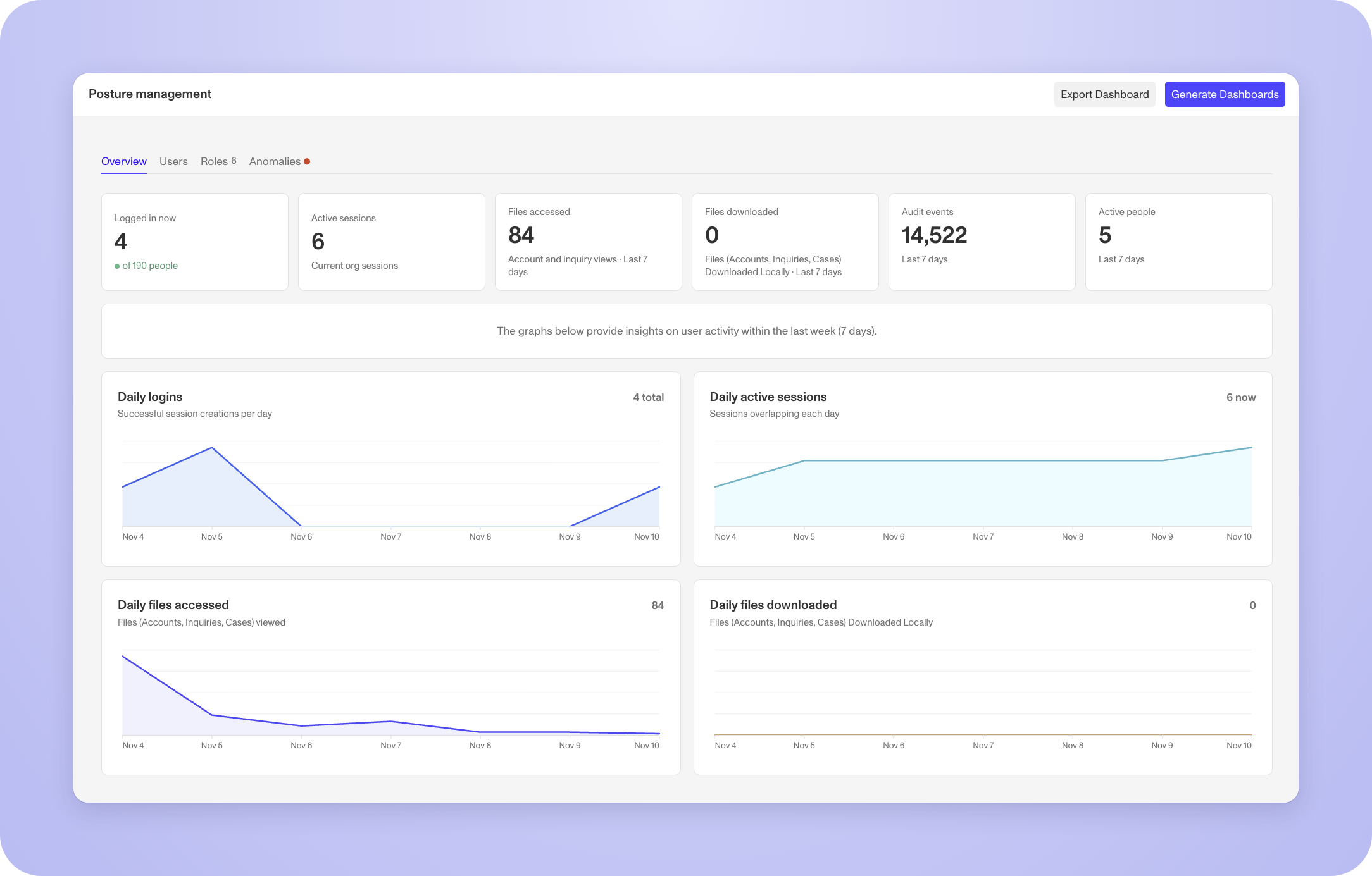
Overview shows org-wide numbers and seven-day trends: people logged in now, active sessions, files accessed, files downloaded, audit events, and daily logins. Check it for a shift in how your team works before you open individual profiles.
Users
Users lists every member of your organization with their status, roles, permissions, sessions, and recent activity. Each permission shows when it was last used. Posture marks a permission unused when it finds no matching successful activity in the past 30 days of audit logs.
If a permission looks unneeded, you have two options on the same page:
Remove the user from a role.
Create a custom role from the permissions the user has used, then assign it.
Assigning a custom role replaces the user’s existing roles, so review the proposed permissions first. An unused label tells you to take a closer look. It doesn’t prove the user can do without that permission.
Anomalies
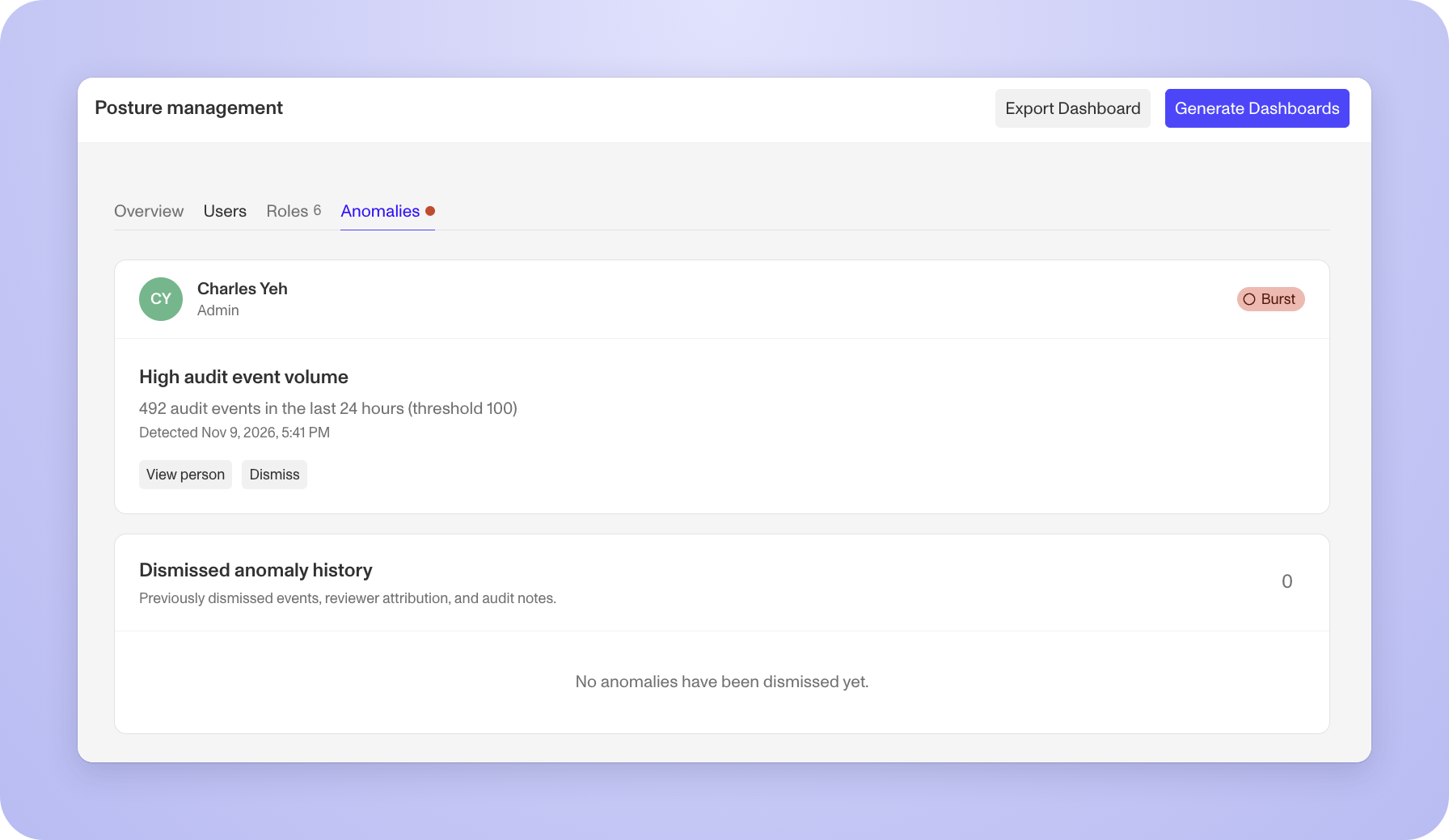
Anomalies flags two kinds of activity:
Concurrent sessions in different locations. The same user has active sessions in different cities, shown on a map with both locations.
Activity spikes. Audit events or file downloads pass a threshold within a 24-hour window.
Findings stay flagged until you resolve or dismiss them. Dismissing a finding requires a note, and Persona keeps that note in the dismissal history.
Treat a finding as the start of an investigation. It isn’t a verdict on a teammate. Review the person’s sessions and activity for context. Location findings rely on the location data available for active sessions, so no finding doesn’t mean no suspicious sign-ins.
Get started with Posture
To load your data, go to Governance > Posture and select Generate Dashboards. Posture doesn’t refresh on its own. Select the button again for new data, and check Last generated to see how current the view is. If you’re an Admin and don’t see Posture, contact Persona Support to check your organization’s access.
For step-by-step instructions and detection limits, read the Security Monitoring Overview.
The information provided is not intended to constitute legal advice; all information provided is for general informational purposes only and may not constitute the most up-to-date information. Any links to other third-party websites are only for the convenience of the reader.